- Android TV & Google TV
Google TV Bluetooth Headphones Not Connecting? Start Here
How to pair or reconnect Bluetooth headphones on Google TV, why only one audio device connects at a time, and how to tell which device is the problem.
Quick answer
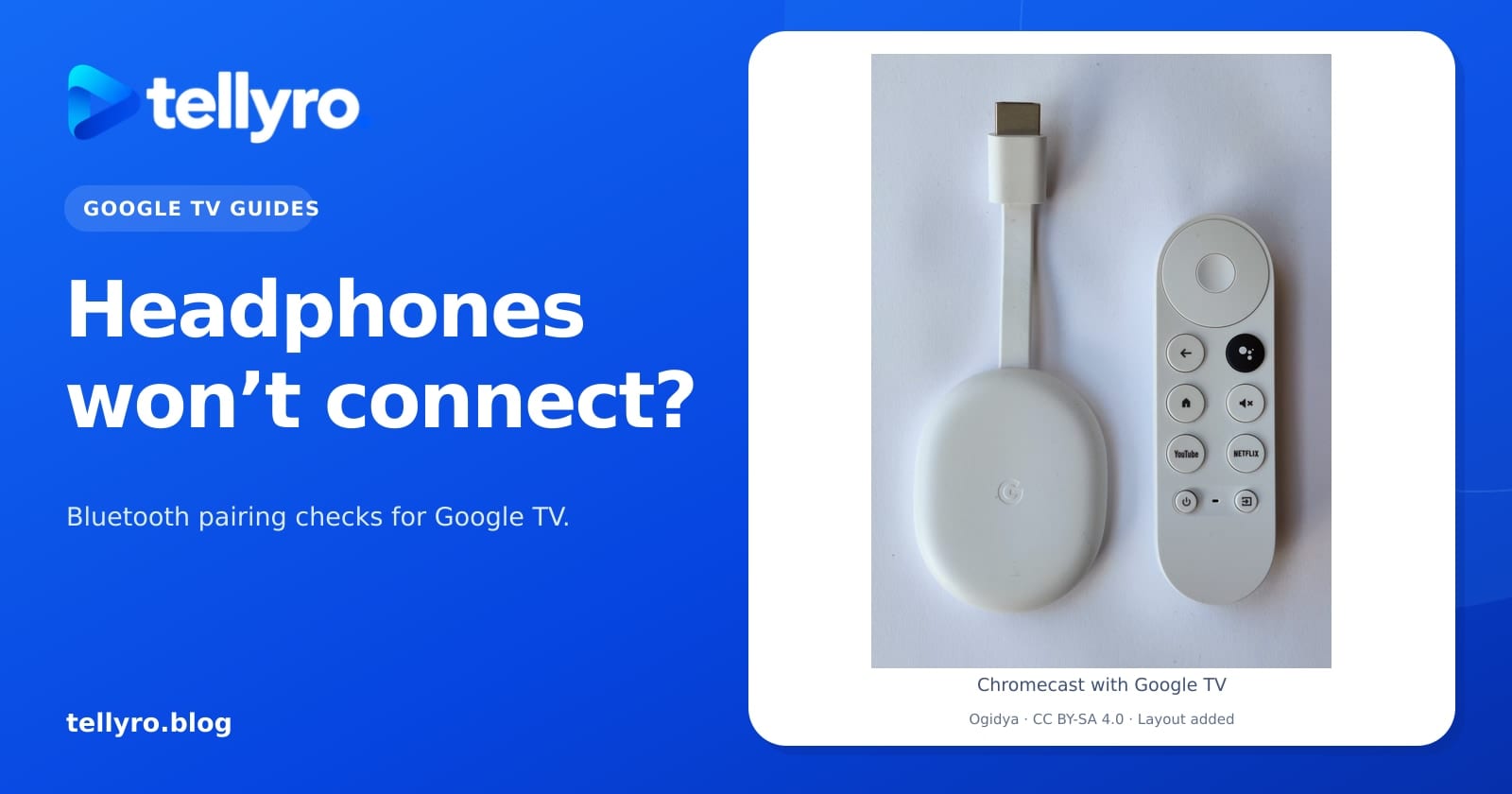
Put the headphones in pairing mode, then on Google TV open Settings > Remote & Accessories > Pair remote or accessory and choose them. Already paired? Select them under Accessories and choose Connect. Google TV connects only one audio device at a time.
Applies to
- Devices
- Google TV devices and TVs (menu names vary by model and software version); Not confirmed for older Android TV software
- Checked
- We checked this guide against the official documentation linked below on November 4, 2026. These steps have not yet been tested by the Tellyro team.
Start by working out whether your headphones need to be paired for the first time or only reconnected. Google says Google TV can only connect to one audio device at a time.
Pair headphones for the first time#
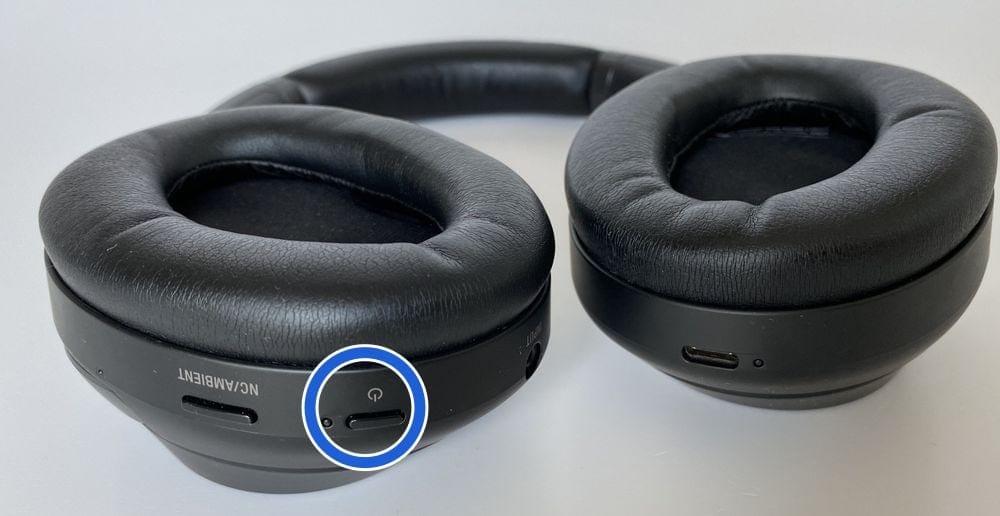
- Put the headphones in pairing mode, using their maker's instructions.
- On the Google TV home screen, select your profile picture or initial in the top right, then choose Settings.
- Open Remote & Accessories, then choose Pair remote or accessory.
- Select the headphones when they appear in the list.
- Choose Pair when the pairing request appears.
Already paired?#
Open Settings, then Remote & Accessories. Select the headphones under Accessories and choose Connect.
Still not connecting?#
Google suggests these basic checks:
- Switch the headphones off and on, then try pairing again.
- If several devices are paired with the TV, disconnect the ones you are not using. Trying a different Bluetooth accessory shows whether the first one is the problem.
- Unplug the TV for 10 seconds, plug it back in and try again.
- Test the headphones with a phone or tablet.
These comparisons help you decide where to look next. They do not prove that every pair of headphones will work with every TV.
What if the headphones work on a phone but not on the TV?#
Google's page names a factory reset of the Google TV as the next step in that case. A factory reset removes your settings from the TV, so treat it as a last step and read Google's page first. If the headphones do not connect to a phone either, check that they have up-to-date software or contact their maker.
What have you already tried?
Tick what you have already done. It helps you see what is left, and you can copy a summary to send to support.
Nothing you type or tick here is sent to us. It stays in your browser.
Editorial guidance from Tellyro Blog, not a diagnosis certified by the device or app maker.
Sources
- Connect Bluetooth devices to Google TV — Google TV Help, read November 4, 2026
How this guide was made
Written with help from AI. Menu names and available features may vary by device and software version.
- We checked this guide against the official documentation linked below on November 4, 2026. These steps have not yet been tested by the Tellyro team.