- Fire TV
- Android TV & Google TV
TiviMate Is Asking for a Playlist. What Do I Enter?
How to tell whether your provider sent an M3U playlist link or Xtream Codes login details, what to choose on TiviMate's Add playlist screen, and how to switch between TVs on a one-device Tellyro subscription.
Quick answer
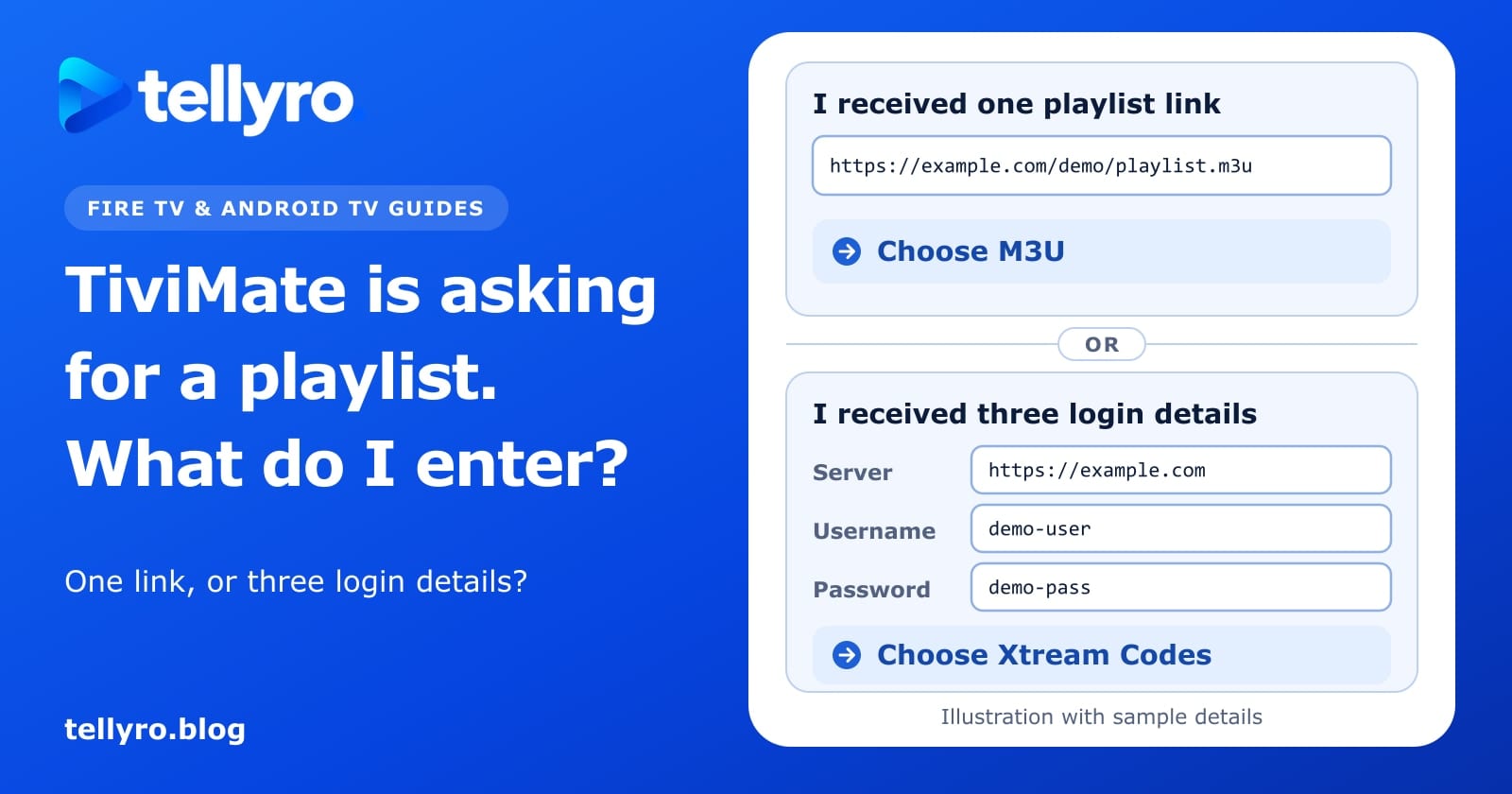
Look at what your provider sent. One web address (a playlist link): choose M3U and enter the link. A server address, a username and a password: choose Xtream Codes and fill in the three fields. If you received something else, ask your provider which TiviMate option to use before you enter anything.
Applies to
- Devices
- Fire TV devices running Fire OS, and Google TV or Android TV devices, with TiviMate installed (menu names vary by device and software version); Not covered: portal-style setup (we have not verified it on a device)
- Apps
- TiviMate IPTV Player
- Checked
- We checked this guide against the official documentation linked below on November 5, 2026. These steps have not yet been tested by the Tellyro team. Steps marked “Not documented by the maker” are not confirmed by official documentation.
TiviMate is a player. It doesn't come with channels, so the first thing it asks for is a playlist: the details your provider sent you. This takes about two minutes when you know which details you have.
Start by looking at what your provider sent. That decides which option you choose. If TiviMate isn't on your TV yet, install it first with our guide to using Downloader to install an APK, then come back here.
Menu wording can vary by TiviMate version. If a name below doesn't match your screen, pick the option that does the same job.
Start here: what did your provider send?#
- One web address (a playlist link). Choose M3U and follow the M3U steps.
- A server address, a username and a password. Choose Xtream Codes and follow the Xtream steps.
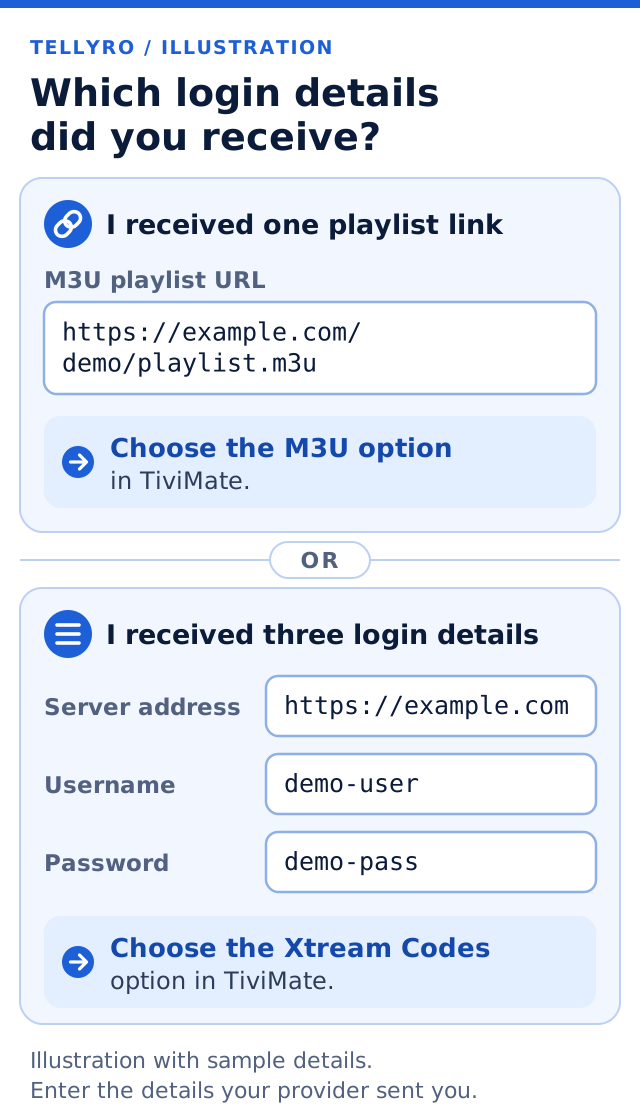
Your provider may have sent these details in an email, in a chat message or on an account page. A playlist link and a password are private. Treat them like a bank PIN: don't post them in a group chat, and don't send a photo of the TV with them visible.
Not sure which you have? Count the separate items. Three separate items (a server address, a username and a password) mean Xtream Codes. One long web address and nothing else means M3U. Many playlist links contain the letters “m3u” somewhere in the address, but yours may look different. If what you received matches neither, ask your provider which TiviMate option to use before you type anything.
Step 1. Open TiviMate and find Add playlist#
Open TiviMate. On the first launch it asks you to add a playlist. Use your remote to highlight Add playlist, the button that adds a new playlist (the exact wording on your screen may differ), then press the round center OK button. You will then see the types of playlist you can add.
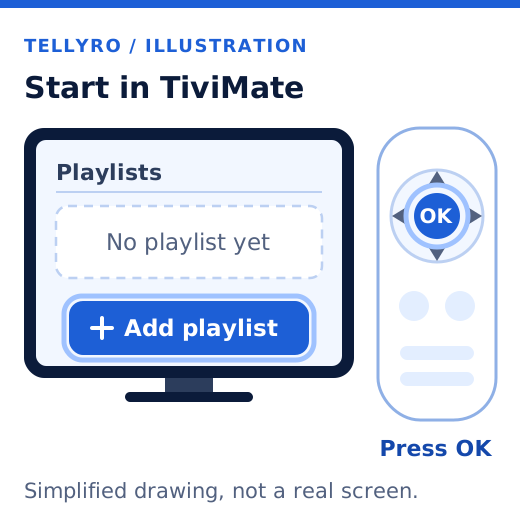
If you already have playlist details from your provider, enter them here. If you'd like to try Tellyro on your TV, you can request a free trial and we'll help you get set up.
If you received one playlist link: use M3U#
Your link is one web address. The picture shows a made-up example. Yours will be different, but it will be one address, entered in one field.
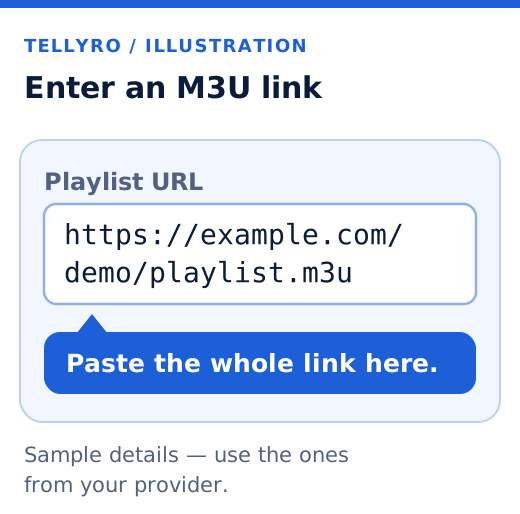
- On the Add playlist screen, choose M3U playlist, the option for a single playlist link (your screen may word it slightly differently).
- Enter your complete link in the playlist field. Type it exactly as your provider sent it, starting with
https://orhttp://. One extra space or one missing letter is enough to stop it loading. - Select Next, or the button that continues to the next screen. If TiviMate asks you to name the playlist, any name works, such as “Home”.
- Wait while TiviMate loads the playlist. You know it worked when TiviMate shows a list of channels.
If you received a server address, a username and a password: use Xtream Codes#
Your details are three separate items, and each one goes in its own field. These are made-up examples:
- Server address:
https://example.com - Username:
demo-user - Password:
demo-pass
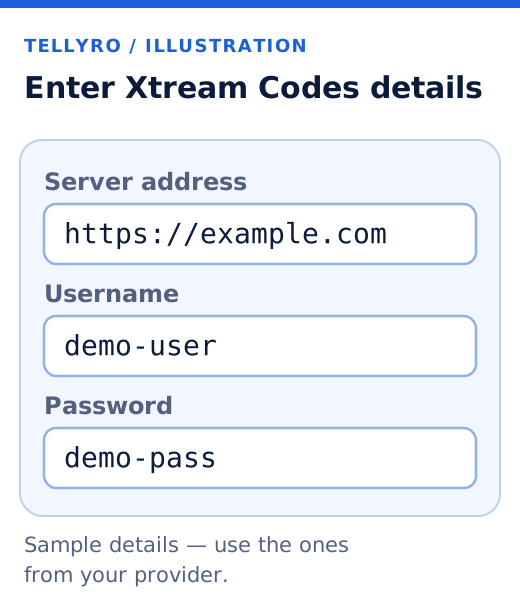
- On the Add playlist screen, choose Xtream Codes, the option that asks for a server address, a username and a password (your screen may word it slightly differently).
- Fill in the three fields, one detail in each. Don't put the username or password in the server address field.
- Copy the server address exactly as your provider sent it. If it ends with a colon and a number, such as
:8080, keep that part. - Check the username and password letter by letter. Usernames and passwords are often case-sensitive, so a capital letter matters.
- Select Next, or the button that continues. If TiviMate asks you to name the playlist, any name works. Then wait for the channels to load.
If TiviMate shows no channels#
A finished install, or a finished Add playlist screen, doesn't prove the details are right. If no channels appear, check these in order. They are general checks, not steps from TiviMate's maker.
- Look at the details again. Check for a space at the start or end, a missing letter, or a capital letter that should be lowercase.
- Check you chose the matching option. A playlist link entered under Xtream Codes, or three login details entered under M3U, won't load.
- Check that your service is active. If a subscription or trial has ended, the details can stop working. Your provider can tell you.
- Check the TV is online. If other apps are offline too, see Fire TV Is Connected to Wi-Fi but Apps Won't Load.
- Don't clear TiviMate's data to start again unless you have your details saved. Clearing data can mean you have to add the playlist again. Clear Cache vs Clear Data on Fire TV and Android TV explains the difference.
If it still doesn't work, tell support your device model, which option you chose (M3U or Xtream Codes) and the last message TiviMate showed. Keep your playlist link, username and password out of photos and public posts.
Using Tellyro on more than one TV#
This section is about Tellyro. A standard one-device Tellyro subscription allows one active device at a time. If your plan or trial has a different device limit, ask support. To move from one TV to another:
- On the first device, fully close the player app (TiviMate in this guide).
- Wait three minutes.
- Open the app on the second device.
On Google TV, you can close an app with Force stop. Open Settings > Apps, select the app under Recently opened apps, then choose Force stop and OK. That is the path on Google's help page. Our guide to Force Stop vs Clear Cache on Google TV explains what Force stop does.
Common questions#
Does TiviMate give me channels?#
No. TiviMate's website describes it as a media player where you add your own playlists. Channels come from your playlist provider, so TiviMate shows nothing until you add one.
What is an M3U playlist?#
It's a playlist stored at a web address. TiviMate reads your channel list from that address.
What is Xtream Codes?#
It's a common way to sign in with a server address, a username and a password. TiviMate uses those three details to ask the server for your channel list.
Is it safe to share my playlist link?#
No. Treat it like a password. Anyone who has it may be able to use your service. Share it only with your provider's support, and keep it out of photos and public posts.
Can I use the same details on two TVs at the same time?#
Not on a standard one-device Tellyro subscription: only one device can be active at a time. See the section above for how to switch. With another provider or plan, ask them.
Where to go next#
- To install TiviMate in the first place, see How to Use Downloader on Fire TV and Android TV to Install an APK.
- If more than one app is offline, see Fire TV Is Connected to Wi-Fi but Apps Won't Load.
- Before you clear an app's data, read Clear Cache vs Clear Data on Fire TV and Android TV.
- To check which version of an app you have, see How to Find an App's Version on Fire TV, Android TV, Samsung and LG.
What have you already tried?
Tick what you have already done. It helps you see what is left, and you can copy a summary to send to support.
Nothing you type or tick here is sent to us. It stays in your browser.
Editorial guidance from Tellyro Blog, not a diagnosis certified by the device or app maker.
Sources
- Fix a slow or laggy Google TV device — Google TV Help, read November 5, 2026
- App Crashes or Won't Load on Your Fire TV — Amazon Customer Service, read November 5, 2026
- TiviMate IPTV Player — TiviMate (the app's developer), read November 4, 2026
How this guide was made
Written with help from AI. Menu names and available features may vary by device and software version.
- We checked this guide against the official documentation linked below on November 5, 2026. These steps have not yet been tested by the Tellyro team.
- Steps marked “Not documented by the maker” are not confirmed by official documentation.