- Fire TV
- Android TV & Google TV
How to Use Downloader on Fire TV and Android TV to Install an APK
Where to enter a Downloader code, how to allow the install when your TV blocks it, and how to install TiviMate on Fire OS, Google TV and Android TV, with the Vega OS exception.
Quick answer
Open Downloader by AFTVnews, choose Home, enter 272483 in the address box and select Go. If the TV says it cannot install unknown apps from this source, choose Settings, allow Downloader, press Back, then select Install. These steps are for Fire OS and for Google TV or Android TV, not for Fire TV sticks that run Vega OS, such as the Fire TV Stick 4K Select.
Applies to
- Devices
- Fire TV Stick, Fire TV Cube and Fire TV smart TVs running Fire OS; Google TV and Android TV devices, including NVIDIA Shield (menu names vary by device and software version); Not covered: Fire TV sticks that run Vega OS, such as the Fire TV Stick 4K Select
- Apps
- Downloader by AFTVnews; TiviMate IPTV Player (used as the example)
- Checked
- We checked this guide against the official documentation linked below on November 4, 2026. These steps have not yet been tested by the Tellyro team. Steps marked “Not documented by the maker” are not confirmed by official documentation.
If support tells you “open Downloader and enter this code,” start on the TV or streaming stick where you want the app. Open Downloader by AFTVnews, choose Home, enter the numbers in the address box, then select Go. When the download finishes, your TV asks whether to install the app. That last screen is easy to miss, because a finished download only means the file has arrived.
We'll go through the whole process using TiviMate as the example. If you already have the orange Downloader app and your screen says your TV can't install unknown apps, skip straight to Step 4. You're already most of the way there.
Before you start, check which device you are using#
- Fire TV Stick, Fire TV Cube or a Fire TV smart TV running Fire OS. Look for Downloader in the Amazon Appstore on that device.
- Google TV or Android TV, including the NVIDIA Shield. Search Google Play on the TV for the app you want. If TiviMate is offered there for your device, you can install it directly. Use Downloader when you want the publisher's APK file.
- A Fire TV stick that runs Vega OS, such as the Fire TV Stick 4K Select. Amazon's device list also shows the 2026 Fire TV Stick 4K and the 2026 Fire TV Stick HD with Vega OS 2.0. Vega OS is not Android-based, so the Fire OS steps below don't apply, and Amazon's pages don't describe installing an Android APK yourself. Our guide to the Fire TV Stick 4K Select and Vega OS explains why and lists the models.
- Roku, Apple TV, or a TV running Samsung Tizen or LG webOS. Use the platform's own app store. If you have a compatible streaming stick plugged into an HDMI port, switch to that HDMI input and follow this guide with the stick's remote.
Look at the home screen you actually use. A Panasonic or Samsung panel can display a Fire TV or Google TV stick plugged into its HDMI port, and in that setup the stick decides which apps you can install. On a Fire TV you can check the model under Settings > My Fire TV > About. Amazon's device list shows which operating system each model runs.
Step 1. Install the orange Downloader app#
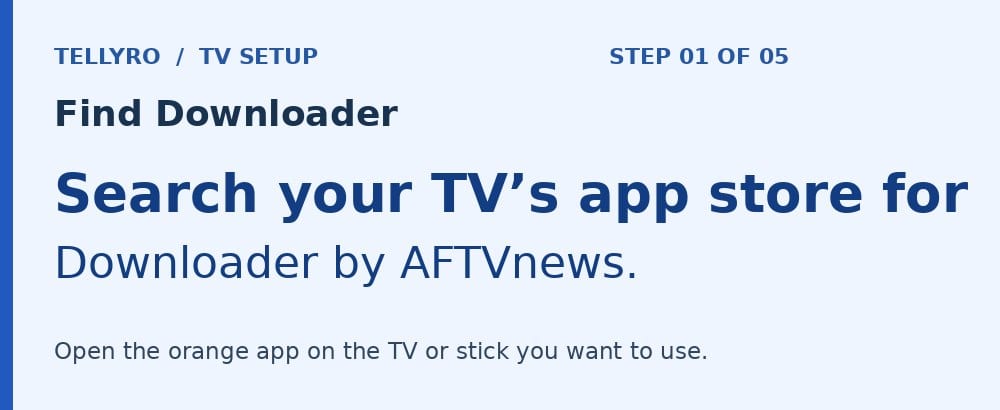
On Fire TV, go to the home screen, open the search (magnifying glass) option under Find, and type Downloader. Open the orange app, which shows a white D with a download arrow. Check the listing for Downloader by AFTVnews, choose Get or Download, then Open.
On Google TV or Android TV, go to Apps and search for Downloader by AFTVnews. If your home screen has a separate Play Store, search there. Choose Install, wait until the button changes to Open, and select it. If the store already says Open, you have the app and can continue.
The official Downloader page lists the Amazon Appstore and Google Play links for the app.
Step 2. Know what to enter and where#
An APK is the file Android uses to install an app. Think of Downloader as the handoff between typing an address with your remote and opening that file on the TV. The Downloader page says it accepts a web address or a numeric short code made with the AFTVnews URL shortener. A code is a shortcut to a web address, so the person sharing it should be able to tell you which app and publisher you should see.
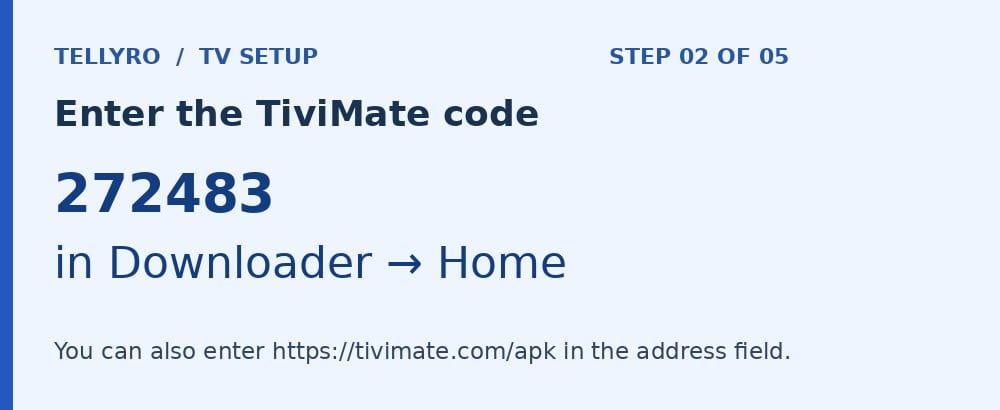
For TiviMate, you can use the code 272483 or the address https://tivimate.com/apk. You only need one. Checked on 4 November 2026: the code opens an AFTVnews redirect page that sends you to files.tivimate.com/tivimate.apk, and TiviMate's own address, tivimate.com/apk, leads to the same file. TiviMate's website does not print the code, so think of 272483 as an AFTVnews shortcut to TiviMate's file, not a number TiviMate publishes. You can also check where the code goes in a browser. That page counts down and then starts the download, so click anywhere on it to pause the countdown while you read the address.
Enter the code on Downloader's Home screen, in the large address or short-code field. The search box on the Fire TV home screen looks similar, but typing the code there searches for shows and apps instead of loading the file.
If support gave you a code for a different app, keep the expected app name handy. The rest of the process is similar, but the number, destination and installer name will be different. A Downloader code is public install information. Your playlist credentials are private and belong inside the player after installation.
Step 3. Start the download#
- In Downloader, select Home from the side menu. Select the address box so the on-screen keyboard appears.
- Type 272483. Check all six digits, then choose Go, Load, or the keyboard's submit button, depending on your version.
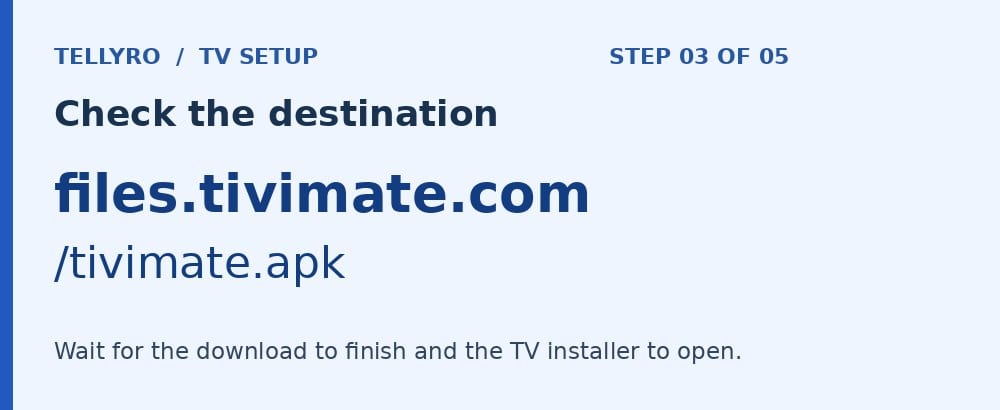
- You may see the AFTVnews redirect page and a short countdown (six seconds on 4 November 2026). For this code, the destination shown should be files.tivimate.com/tivimate.apk. Wait for the redirect, and ignore anything on that page that offers a different download. If the address is not the one above, go back to Home and enter the TiviMate address directly.
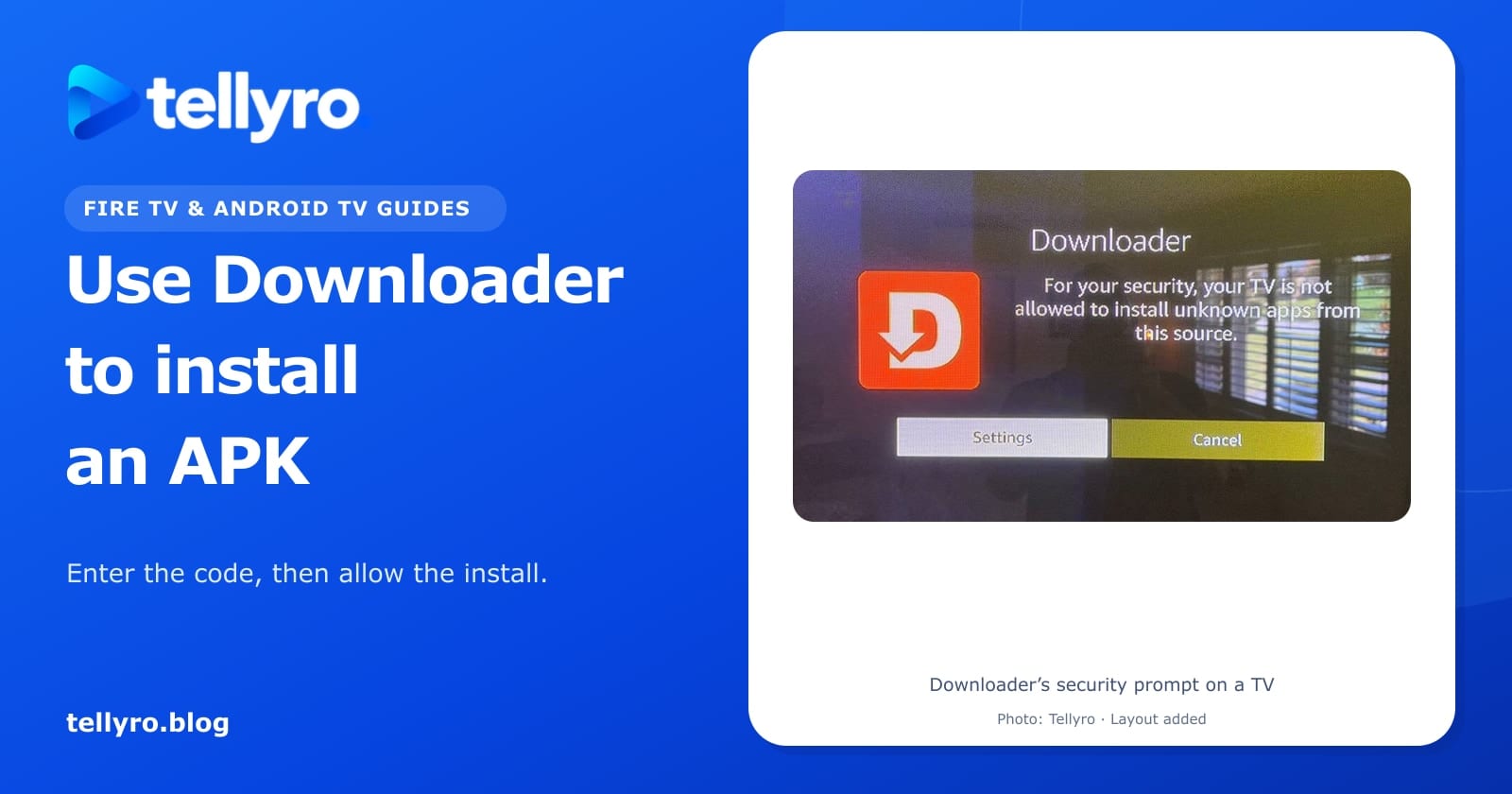
- Let the progress bar finish. Downloader hands the APK to the TV's installer. If you see Install, continue to Step 5. If the TV offers Settings and Cancel, follow Step 4.
Step 4. Allow Downloader to install the file#
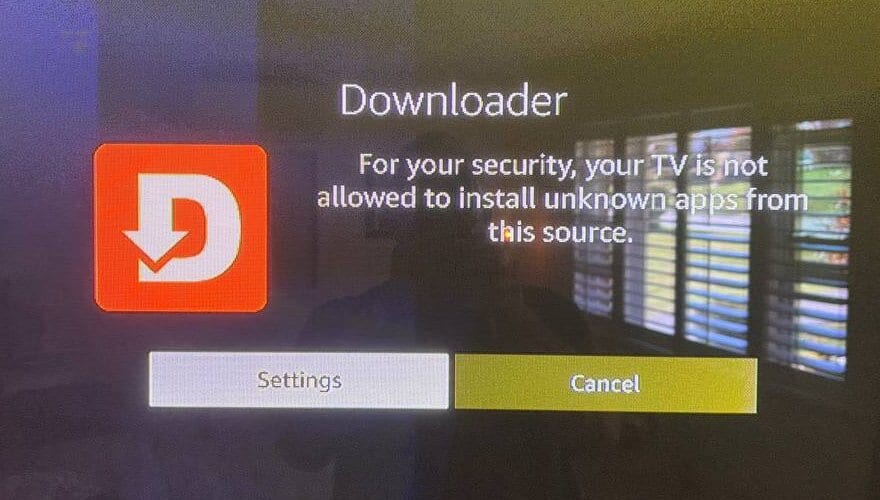
The TV is asking whether Downloader may open an installer. The permission belongs to the app that fetched the file. Look for Downloader in the permission list, even though the app you're trying to install is TiviMate.
Google TV or Android TV#
Select Settings in the warning. If a list opens, find Downloader. Switch Allow from this source on, or change Not allowed to Allowed. Press Back to return to the installer. If you closed the warning, look in your TV settings for Apps > Special app access > Install unknown apps. Some TVs put Unknown sources under Security & restrictions instead. The shortcut on the warning is the easiest way to reach the right screen for your model.
Google's Play Protect help page says Play Protect checks for harmful apps and may recommend scanning an app that comes from outside Google Play. If it does, follow the prompt on screen.
Fire TV running Fire OS#
Go to Settings > My Fire TV > Developer options. On a Fire TV smart TV, AFTVnews calls the main menu Device & Software. On newer software, select Install unknown apps, choose Downloader and switch it on. Some versions have a single Apps from Unknown Sources switch instead. Amazon's developer page describes that switch. Leave ADB debugging alone, because you don't need it for this.
If Developer options is hidden, open My Fire TV > About, highlight the device name, and press the center Select button seven times. Press Back once and look for Developer options again. Amazon's developer page describes this as clicking the remote's D-pad seven times on the About screen, and says it applies to some software versions.
If Back returns you to Downloader without the installer#
Open Files in Downloader and select the APK you just downloaded. The Downloader documentation says that opening an APK from the Files list starts its installation, so you don't need to type the code again. If no completed file appears, use the publisher's address and let the download finish.
Step 5. Install TiviMate and open it for the first time#
Read the app name at the top of the TV's installer. For this walkthrough it should say TiviMate. If a different name appears, cancel and check the address. Select Install and wait for the confirmation. Choose Open to launch TiviMate immediately or Done to return to Downloader. Later, you can open TiviMate directly from your device's apps list.
On first launch, a prompt to Add playlist is a good sign. The player is installed and is waiting for your own service details. TiviMate describes itself as a media player where you add your own playlists. If your provider gave you an M3U playlist link, select the M3U option and enter the complete address. If they gave you Xtream Codes details, choose that option and enter the server address, username and password in their respective fields. Keep characters, punctuation and capitalization exactly as provided. Only add a playlist you're authorized to use. TiviMate supplies the player, and channel access comes from your playlist provider.
If you already have playlist details from your provider, you can use them here. If you’d like to try Tellyro on your TV, request a free trial from Tellyro and we’ll help you set it up.
Step 6. Clean up after installation#
You can delete the downloaded APK once the install is confirmed. Downloader may offer to delete it when you choose Done. You can also do it later: open Files in Downloader, highlight the file, press the menu button and confirm. The Downloader documentation describes that route. Deleting the APK removes the installer copy and frees space, and the installed player stays in your apps list.
Our suggestion: return to the same Install unknown apps screen and switch Downloader's permission off. Amazon's and Google's pages don't cover this step. It just means Downloader has to ask again before it installs anything else. If you deliberately install a newer APK in the future, you can enable it again for that install. When updating an existing player, first check where you originally installed it. Using the same store or publisher avoids confusion over competing update prompts.
When your screen looks different#
- The TV searches for shows when you type 272483. Press Home, open the orange Downloader app, then use its address box.
- A keyboard stays open after you enter the code. Select the keyboard's submit button or dismiss it once, then choose Go or Load.
- The redirect opens, but the file never starts. Try the TiviMate address directly. If other apps also fail online, check the connection before changing install settings. Our guide to checking the internet connection on a Fire TV Stick shows where.
- “For your security” comes back a second time. Reopen Settings and check that the permission is on for Downloader on the same device. Then go back to Downloader's Files and select the completed APK.
- Developer options is missing on a Fire TV. Check the model and operating system first. On Fire OS, highlight the device name inside About before pressing Select seven times.
- Downloader is missing from the Install unknown apps list. AFTVnews reported that on some Fire OS 7 and Fire OS 8 versions, Downloader could be missing from this list. On 16 September 2026 it reported that Amazon's fix was rolling out. Check for a system update, then look again. This comes from AFTVnews, not from Amazon.
- The install fails after the file finishes downloading. Check free storage, confirm the device supports Android TV apps, then retry with a fresh copy from the publisher. Avoid uninstalling an existing player as a first step, especially if you haven't saved your playlist details.
- TiviMate opens, but no channels appear. Installation is complete. Open Add playlist, check the credential type and confirm the service is active with your provider. Re-entering the Downloader code only downloads the player again.
What to send support if you're stuck#
Tell support your device model, the app you're installing, and the last button you pressed. For example: “Fire TV Stick 4K Max (2nd Gen), installing TiviMate. The download finishes, but pressing Install takes me back to Settings.” A photo of that one screen is more helpful than starting the process again. Keep playlist URLs, usernames, passwords and account details out of the photo.
Common questions#
What is Downloader?#
Downloader is an app from AFTVnews. Its page describes it as an app that helps you download files onto your Fire TV. You can enter the address of a file or website, or a numeric short code from the AFTVnews URL shortener. It also has a built-in browser and a Files list.
Do I need Downloader on Google TV or Android TV?#
Not always. Google TV and Android TV devices have Google Play, and TiviMate IPTV Player has a Google Play listing. If it is offered for your device, installing from there skips the unknown-apps step. Use Downloader when you want the publisher's APK, or when an app isn't in the store.
Does the code work on a Fire TV Stick 4K Select?#
No. The code only fetches an Android APK file, and the Fire TV Stick 4K Select runs Vega OS, which is not Android-based. See Fire TV Stick 4K Select: Does It Work With Tellyro? for the full list of Vega OS models.
Does installing TiviMate give me channels?#
No. TiviMate's website describes it as a media player where you add your own playlists. Channels come from your playlist provider, so TiviMate shows nothing until you add one.
Where to go next#
- If more than one Fire TV app is offline, see Fire TV Is Connected to Wi-Fi but Apps Won't Load.
- If a Google TV app freezes after it opens, see Force Stop vs Clear Cache on Google TV.
- Before you clear an installed app's data, read Clear Cache vs Clear Data on Fire TV and Android TV. Clearing data can mean you have to add your playlist again.
- To check which version of an app you now have, see How to Find an App's Version on Fire TV, Android TV, Samsung and LG.
- For more about Downloader's address field, browser and file manager, see the Downloader documentation from AFTVnews. For the current TiviMate download, go directly to the TiviMate developer's site.
What have you already tried?
Tick what you have already done. It helps you see what is left, and you can copy a summary to send to support.
Nothing you type or tick here is sent to us. It stays in your browser.
Editorial guidance from Tellyro Blog, not a diagnosis certified by the device or app maker.
Sources
- Connect to Fire TV Through ADB (Developer options and Apps from Unknown Sources) — Amazon Developer Documentation, read November 4, 2026
- Device Specifications: Fire TV Streaming Media Player (page last updated 30 September 2026) — Amazon Developer Documentation, read November 4, 2026
- Protect your TV from harmful apps with Google Play Protect — Android TV Help, read November 4, 2026
- Android developer verification — Android Developers, read November 4, 2026
- Downloader by AFTVnews — AFTVnews (the Downloader developer's site), read November 4, 2026
- Downloader documentation — AFTVnews (the Downloader developer's site), read November 4, 2026
- AFTVnews URL Shortener: code 272483 (shows the destination before it redirects) — AFTVnews, read November 4, 2026
- TiviMate IPTV Player — TiviMate (the app's developer), read November 4, 2026
- How to enable Apps from Unknown Sources on an Amazon Fire TV or Fire TV Stick — AFTVnews, read November 4, 2026
- Fire TV bug is preventing Downloader and other apps from appearing in the Install Unknown Apps list — AFTVnews, read November 4, 2026
How this guide was made
Written with help from AI. Menu names and available features may vary by device and software version.
- We checked this guide against the official documentation linked below on November 4, 2026. These steps have not yet been tested by the Tellyro team.
- Steps marked “Not documented by the maker” are not confirmed by official documentation.